 BubbleMarkets
Embeddable Market Data Widgets for Website Pages

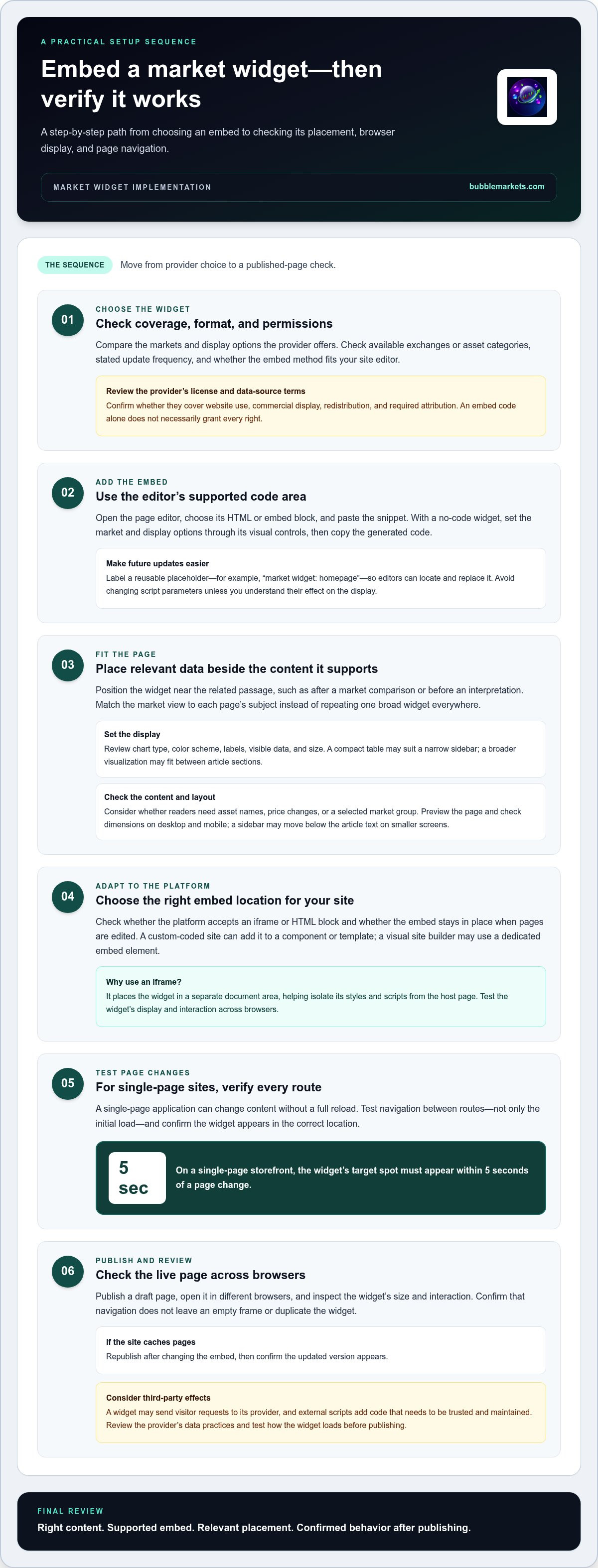
To add embeddable market data widgets for websites, place the widget’s embed code in the page area where readers need the data; an iframe can isolate its styles and scripts from the rest of the site. For a single-page storefront, the widget’s target spot must appear within 5 seconds of a page change.
The embed method is only one part of the setup. Your website platform, available code blocks, page layout, and browser behavior all affect where a widget fits and how it displays. This guide explains how to add embeddable market data widgets for websites, position them within page content, and adapt the setup across platforms and browsers.
You’ll also learn what to test after embedding, including how the widget behaves as visitors move between pages. The goal is a clear, usable market view that fits naturally into the page without disrupting its content.
Key Takeaways
- Use the embed code in the page editor’s supported code area, then keep a reusable placeholder to simplify updates across pages.
- Place a widget beside the content it supports, and check that its dimensions fit the surrounding layout on different screen sizes.
- An iframe can separate a widget’s styles and scripts from the host page; test its display and interaction across browsers.
- Adapt the installation to each platform’s editing tools, then review the published page to confirm the widget appears in the intended location.
Embed code and reusable placeholders
The right embeddable market data widgets for websites match the assets, display style, and placement your page needs. Choose a widget with an embed method your site editor supports, then test it in the actual content area. A market overview, for example, may suit a full-width section, while a compact chart can sit beside related analysis.
Which providers offer stock, crypto, forex, and commodity market data widgets? Look for providers that explicitly cover all four asset categories and offer an embed method for each. Coverage and widget formats vary, so compare the available markets and display options before choosing what to place on your page.
What licensing rules apply to displaying financial market data on a website? The provider’s license and underlying data-source terms determine what you can display. Check whether the terms cover website use, commercial display, redistribution, and required attribution. An embed code alone does not necessarily grant every right.
What data sources, exchanges, and update frequencies do market widgets support? These vary by provider and selected market. Before embedding, inspect the available exchanges or asset categories and the stated update frequency. Choose settings that suit the page’s purpose, whether it needs a broad market snapshot or a view of a particular asset class.
To embed the code, open your page editor, select its HTML or embed block, and paste the snippet. Label the code in a reusable placeholder, such as “market widget: homepage,” so editors can find and replace it without searching every page. Avoid changing script parameters unless you understand how they affect the display.
No-code setup usually means configuring a widget through visual controls rather than writing a script. Select the market, display format, and available options, then copy the generated code into the page block. Test the published page to confirm the widget loads in the intended position and any trigger, such as a tab selection, displays the expected view.
Inline placement of widgets within page content
Popular widgets vary by asset coverage, chart formats, display controls, and page-level settings. Compare how each handles the same task, such as showing a market overview beside a related article.
Appearance and Content Controls
Appearance controls determine how a widget fits the surrounding page. Review options for chart type, color scheme, labels, visible data, and size. A compact table may work in a narrow sidebar, while a broader visualization can sit between article sections. Adjust only the elements that improve legibility and suit the page layout.
Content controls determine what appears inside the widget. Check whether readers can see asset names, price changes, or a selected market group. A page explaining bond yields, for example, needs a different view from a general stock-market overview. Compare each widget’s content controls, not just its visual style.
Page-Specific Configuration
Match the widget’s content to each page’s subject. A company profile could show relevant stock data, while a cryptocurrency explainer could display a crypto market view. Use distinct settings for those pages instead of repeating one broad widget everywhere. This keeps the embedded information relevant to the surrounding text.
If your site uses reusable templates, identify which settings apply to the template and which apply to individual pages. Keep the shared layout consistent, then configure each page’s market or category separately. Preview the page after editing to confirm the selected content, labels, and dimensions work with the headline and body text.
Place the widget near the passage it supports, such as after a market comparison or before an interpretation of the data. Check the published layout on desktop and mobile: a sidebar may move below the article text on smaller screens. Adjust the width or placement if the widget interrupts the reading flow.
To compare practical display choices, explore interactive market visualizations as examples of data presented in a page-ready format.
IFrame isolation and browser support
An iframe places a market widget inside a separate document area on your page. This separation helps isolate the widget’s styles and scripts from the host page. Iframes are used for embedded menus because they work across browsers and can be updated after deployment. The host page’s styles are less likely to alter the widget’s display.
Third-party widgets can affect privacy, security, and page performance. Loading one may send visitor requests to its provider, while external scripts add code that needs to be trusted and maintained. Review the provider’s data practices and test how the widget loads before publishing.
Single-page applications need an extra placement check. These sites can change page content without a full reload, so the widget must respond to navigation and render in the correct location. In a single-page storefront, the target spot must appear within 5 seconds of a page change. Test navigation between routes, not just the initial page load.
Platform support depends on how your site handles embedded content. Check whether its editor accepts an iframe or HTML block and whether the block remains in place when pages are edited. A custom-coded site can add the embed to a component or template; a visual site builder may require its dedicated embed element.
Follow the same test sequence on each platform: publish a draft page, open it in different browsers, and inspect the widget’s size and interaction. Check that page navigation doesn’t leave an empty frame or duplicate the widget. If the platform caches pages, republish after changing the embed and confirm the updated version appears.
Square Market chose iFrames for its menu embeds because they work across browsers, isolate styles and scripts, and can be updated after deployment. These features make the format a practical way to keep a menu separate from the host page while still allowing the embed to be revised.
Embedding widgets on different website platforms
Your platform’s editor determines where embed code goes and how its settings are saved. In WordPress, Shopify, and Wix, look for a custom HTML or embed block. Add the widget to a draft page and preview it before publishing. This separates platform-specific setup from decisions about the widget’s content and appearance.
Content management systems often use blocks, modules, or page-builder elements. Open the page editor, add the element intended for custom code, and paste the widget snippet. Keep it in the article body if readers need it beside related text. For a shared template, confirm whether the block appears on every page that uses it.
Hosted site builders may restrict scripts or embedded content in some areas. Use the platform’s designated embed component rather than pasting code into a text field. Check the published preview for clipped edges, unexpected spacing, or an empty widget area. If the editor offers page-level settings, use them to control placement on individual pages.
On a custom-coded site, a developer can add the embed to a page component or template. Keep the widget code separate from unrelated page scripts and document its location for future edits. For a single-page application, test route changes as well as the initial load, and confirm navigation refreshes or replaces the widget correctly.
Use this platform-focused workflow: identify the page editor, find its embed element, insert the code, and preview the result. Then check the layout on mobile and desktop, as well as in a second browser. If the same widget appears on several pages, compare the content and placement on each one after publishing. This review can catch template changes that affect multiple pages.
For branded deployments, explore white-label widget options as a way to align an embedded market view with a site’s presentation.
BubbleMarkets: Free Live Market Bubble Maps
BubbleMarkets offers a visual way to scan market activity with free live market bubble maps. Use the Stock Market Bubble Map or Crypto Bubble Map to explore those markets in a bubble-based view alongside your website content.
For additional functionality, BubbleMarkets offers Pro, Professional, and Enterprise subscriptions. Choose based on the features your market research and workflow require. The maps visualize market information; BubbleMarkets does not provide brokerage services or personalized investment recommendations.
Visit bubblemarkets.com to explore the available market maps and subscription options.
Choose a widget that fits your next page
Make your next step a focused test: decide what market context the page needs and where readers will use it. Then choose a relevant view and assess how it fits the content, publishing workflow, and experience across browsers. This gives your team a practical basis for deciding whether to add an embedded visualization to more pages.
BubbleMarkets offers free live market bubble maps, including a Stock Market Bubble Map, as well as Pro, Professional, and Enterprise subscriptions. Explore the maps first, then consider how embeddable market data widgets for websites might fit your publishing plans.
Keep the decision grounded in your page’s purpose: a widget should clarify the subject, not compete with it. Consider how the selected view supports the surrounding information, then adjust it to meet the page’s needs.
Contact BubbleMarkets about market data widgets to discuss a suitable next step. Your site can make market information easier to explore, one well-placed view at a time.
Frequently Asked Questions
How can I embed a market data widget on a website?
Add the provider’s embed snippet to a page’s HTML or embed block, then publish and test the result. For a reusable site template, place the code in its designated content area and configure page-specific parameters separately. If you prefer a no-code workflow, use a visual widget configurator when available. It can generate embed code without requiring you to write the widget script.
Can market data widgets be customized with branding, themes, and ticker symbols?
Customization depends on the widget’s available controls. Some embeds let you select a theme, instruments, or ticker symbols; branded presentation may require commercial licensing. BubbleMarkets offers commercial licensing and white-label widgets for branded market visualizations. Before publishing, match the visual settings to your site and confirm the selected instruments and branding appear as intended.
Are market data widgets compatible with WordPress, Shopify, and other website platforms?
Widgets can work on WordPress, Shopify, and other platforms that support embedded content, but editor controls vary. Some platforms restrict scripts in particular areas, so use the designated embed feature rather than a standard text field. Test on a draft page first, then inspect the published view on desktop and mobile. Custom-built sites can add widgets to the relevant page component.
Which providers offer stock, crypto, forex, and commodity market data widgets?
Choose market-data providers that explicitly cover stocks, crypto, forex, and commodities and offer an embed method for each. Coverage varies, so compare the markets and widget formats available.
Frequently asked questions
How can I embed a market data widget on a website?
Add the provider’s embed snippet to a page’s HTML or embed block, then publish and test the result. For a reusable site template, place the code in its designated content area and configure page-specific parameters separately. If you prefer a no-code workflow, use a visual widget configurator when available. It can generate embed code without requiring you to write the widget script.
Can market data widgets be customized with branding, themes, and ticker symbols?
Customization depends on the widget’s available controls. Some embeds let you select a theme, instruments, or ticker symbols; branded presentation may require commercial licensing. BubbleMarkets offers commercial licensing and white-label widgets for branded market visualizations. Before publishing, match the visual settings to your site and confirm the selected instruments and branding appear as intended.
Are market data widgets compatible with WordPress, Shopify, and other website platforms?
Widgets can work on WordPress, Shopify, and other platforms that support embedded content, but editor controls vary. Some platforms restrict scripts in particular areas, so use the designated embed feature rather than a standard text field. Test on a draft page first, then inspect the published view on desktop and mobile. Custom-built sites can add widgets to the relevant page component.
Which providers offer stock, crypto, forex, and commodity market data widgets?
Choose market-data providers that explicitly cover stocks, crypto, forex, and commodities and offer an embed method for each. Coverage varies, so compare the markets and widget formats available.
Market information on this page is for education and general information only. It is not investment advice or a recommendation to buy or sell any asset.